
Home Network Foundations for a Reliable Smart Home
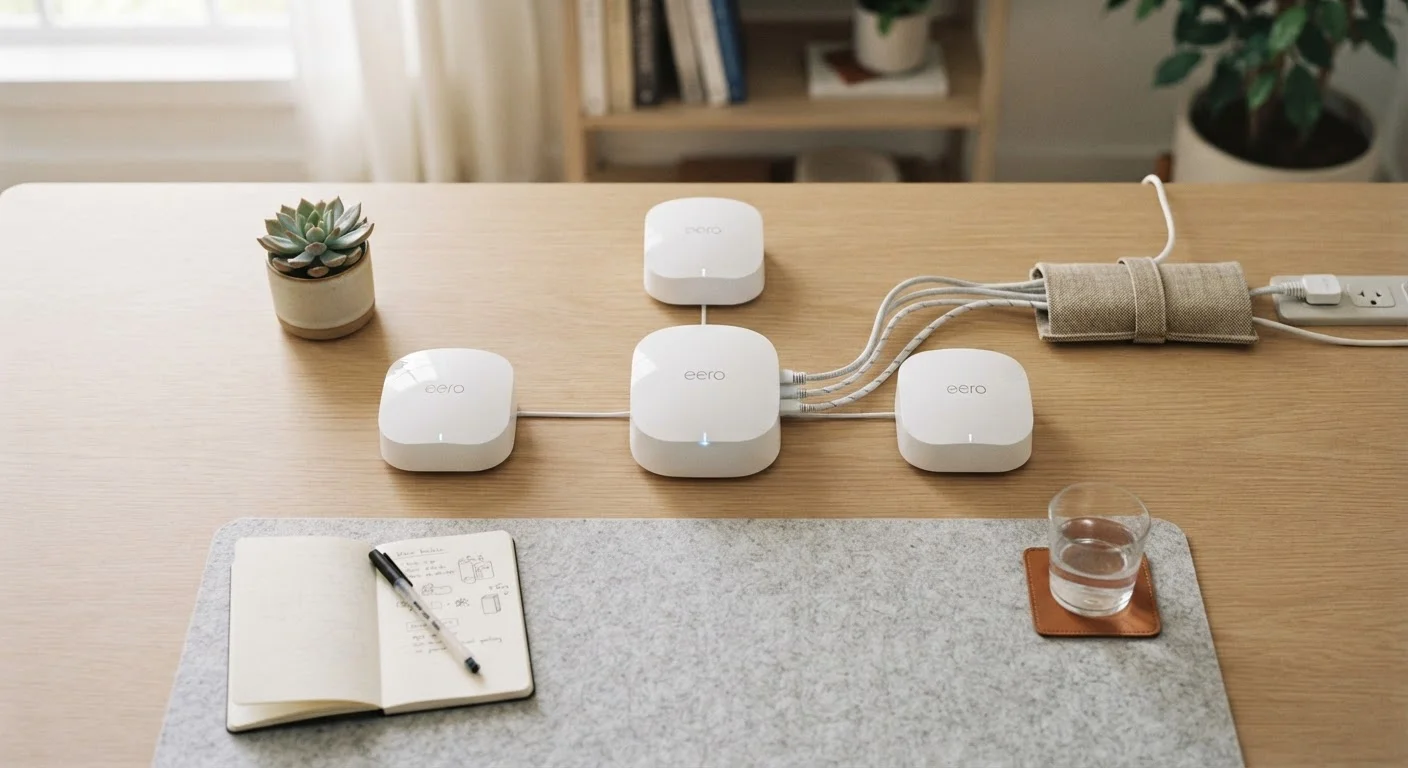
Photo credit: TheBlogZappier.com | Simple Search, Credible Results
In this article
Strong Wi-Fi, sensible segmentation, and consistent firmware updates underpin every working smart home. Here's the approach that holds up.
Key Takeaways
- Wi-Fi coverage gaps and congestion cause most smart home reliability problems — address the network first.
- Separating smart devices onto their own network segment limits exposure if one device is compromised.
- Keeping firmware current on your router and devices closes security vulnerabilities before they're exploited.
- Choosing devices that support open protocols gives you more flexibility and longer-term compatibility.
- A wired backhaul between mesh nodes dramatically improves throughput and reduces dropped connections.
Why the Network Is the Foundation
Smart home devices — thermostats, cameras, bulbs, locks — are only as dependable as the network they run on. When a bulb won't respond or a camera feed stutters, people often assume the device is faulty. Usually, the actual culprit is a weak Wi-Fi signal, an overloaded router, or IP address conflicts.
Before adding more devices, it's worth understanding how the protocol layer and the network layer interact. Our explainer on how smart home devices communicate covers why the hub protocol matters — but even a perfect Zigbee mesh will have problems if the router it reports through is struggling.
Starting with a well-configured, adequately-covered Wi-Fi network isn't optional. It's the prerequisite for everything else.
Core Practices for a Stable Smart Home Network
These practices address the most common failure points in real smart home setups — not theoretical edge cases.
Use a mesh Wi-Fi system with a wired backhaul for homes larger than a single room.
A single router struggles to deliver consistent signal through walls and floors. Mesh systems use multiple nodes to extend coverage, but the connection between nodes matters: a wireless backhaul shares bandwidth with client devices, while a wired Ethernet backhaul keeps that link separate and fast.
Segment your smart home devices onto a separate VLAN or guest network.
Putting all smart devices on the same network as your laptops and phones means that if any single device is compromised, it has potential access to everything else. Network segmentation — using a separate VLAN or even a router's guest network — creates an isolation boundary. Most mid-range routers support this without specialized knowledge.
Enable automatic firmware updates on your router — and check device updates manually if auto-update isn't available.
Routers and smart devices run software that vendors patch regularly to fix security flaws. Leaving firmware outdated is one of the more preventable ways a home network gets exposed. Many consumer routers now offer automatic updates; smart device apps often have a firmware section in settings that shows available versions.
Change default router credentials and disable remote management unless you specifically need it.
Routers ship with default admin usernames and passwords that are publicly documented. Anyone on your network — or sometimes anyone on the internet if remote management is enabled — can attempt to log in. Changing these defaults is a basic step that meaningfully reduces exposure.
Prefer devices that support open or widely-adopted protocols over proprietary-only ecosystems.
Smart home devices tied to a single manufacturer's closed ecosystem are at risk if that company discontinues a product line or shuts down its servers. Devices that support open protocols like Matter, or established ones like Zigbee or Z-Wave, give you more options when your setup evolves.
Quick Actions You Can Take Today
You don't need to overhaul your entire setup at once. A few targeted changes deliver outsized improvements in reliability and security.
If you're planning to connect new devices soon, the pre-connection checklist walks through firmware, permissions, and default credentials to review before anything goes live.
Keeping the Network Healthy Long-Term
A network isn't something you configure once and forget. Routers accumulate connected devices over time, firmware patches continue to release, and your usage patterns change. Periodic check-ins — reviewing connected devices, retiring gear you no longer use, confirming auto-update settings — keep things from quietly degrading.
When to Reboot vs. When to Investigate
Rebooting a router clears temporary issues like memory buildup or stalled connections, and it's a reasonable first step when devices stop responding. But if problems return within days, a reboot is masking something — an overloaded device list, a channel congestion issue, or failing hardware. Treat repeated reboot cycles as a signal to investigate the root cause rather than a maintenance routine.
The same habits that keep a network healthy mirror broader device maintenance principles. The approach to keeping a computer running well over time applies similarly: consistent small maintenance beats periodic emergency repairs.
If you're still planning your setup rather than troubleshooting an existing one, what first-time smart home owners should know before buying a single device covers how to plan before you spend.

Author
Tech & Electronics Editorial Team
Tech & Electronics Editorial Team is the collective byline for our editorial team and contributor network. Articles published under this byline or an editorial pen name are researched, written, and reviewed according to our editorial standards for clarity, consistency, and independence before publication.
View all articles →