
Points to Verify Before Connecting a New Smart Device to Your Home Network
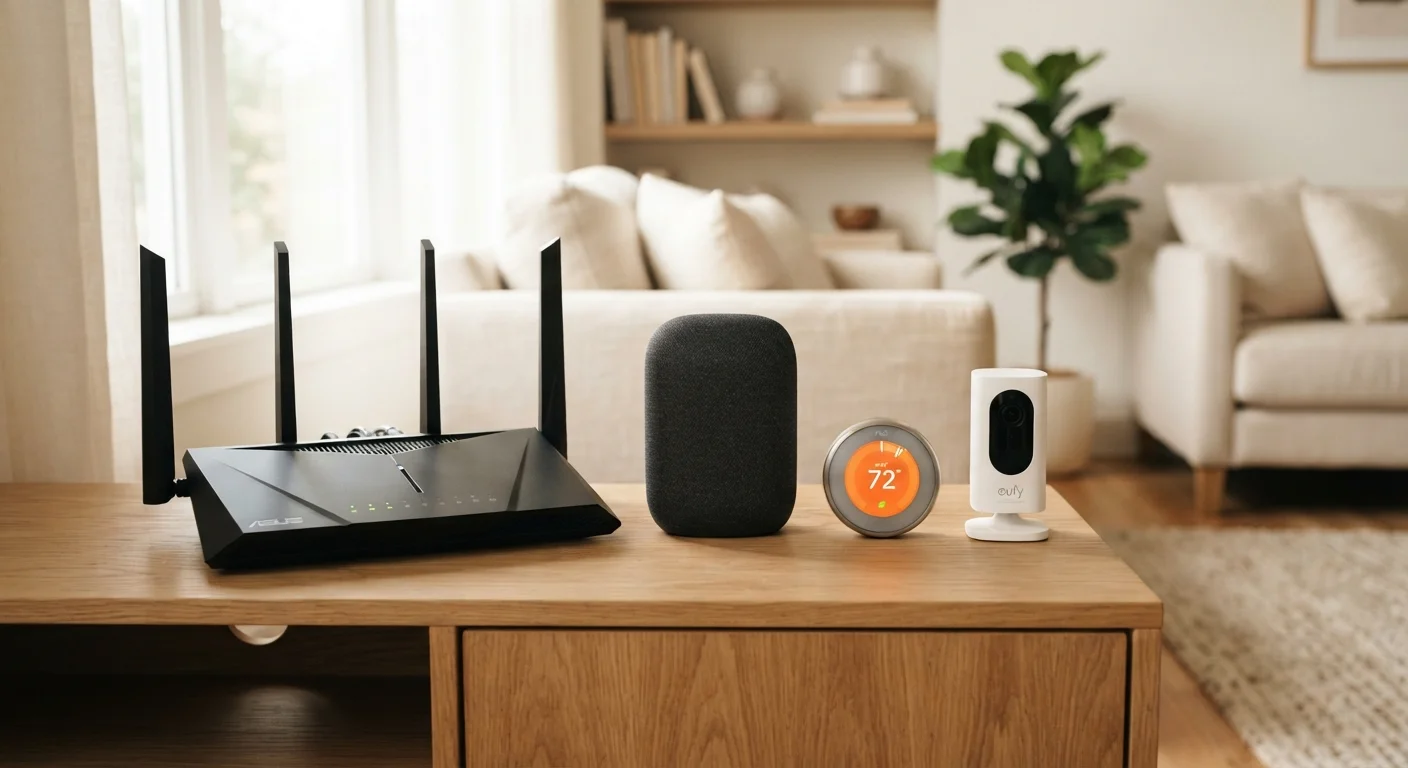
Photo credit: TheBlogZappier.com | Simple Search, Credible Results
A practical checklist covering firmware, permissions, guest networks, and default credentials to review before any smart device goes live.
Key Takeaways
- Default usernames and passwords on smart devices are a known security risk and should be changed immediately.
- Placing smart devices on a separate guest network limits their access to your primary devices.
- Firmware updates often patch real security vulnerabilities, not just add features.
- Reviewing app permissions before installation helps you avoid unnecessary data sharing.
- Not all smart devices offer the same level of encryption or privacy transparency.
Why This Checklist Matters
Adding a new smart device to your home network — whether it's a thermostat, a security camera, a smart bulb, or a voice assistant — is usually quick. The setup wizard walks you through a few taps, and within minutes the device is live. What that process rarely walks you through is security.
Smart home devices often run lightweight software, get infrequent updates, and ship with generic factory settings. Once they're on your network, they become a potential entry point alongside everything else connected to it: your laptop, your phone, your financial accounts. That doesn't mean smart devices are inherently dangerous — it means they deserve the same few minutes of attention you'd give a new lock on your front door.
This checklist is designed to be practical and non-technical. You don't need to understand networking to use it. Work through it before any new device goes live, and you'll have a much clearer picture of what you're actually letting onto your network. For a broader look at building a flexible smart home, see our guide to setting up a smart home without locking into one brand.
Guest Networks Aren't Foolproof
Putting smart devices on a guest network is a meaningful layer of protection, but it's not a guarantee. A poorly configured router, weak passwords, or unpatched firmware on the router itself can still create exposure. Treat this checklist as a starting point, not a complete security solution.
What You'll Need
You won't need any special hardware or software — just your phone or computer, access to your router's settings, and the manufacturer's app or setup instructions for your new device.
Router admin panel
Used to create or configure a guest/IoT network and verify client isolation settings.
Device companion app
Required to complete setup, apply firmware updates, and adjust device-specific settings.
Password manager
Helps you generate and store a unique, strong password for each device account without needing to remember them.
Manufacturer's support page
Used to verify the device's current firmware version and check update history before purchase or setup.
The Verification Checklist
Work through these items in order. The earlier groups cover the most critical steps; later groups address settings that strengthen your setup over time.
Before You Unbox
Default Credentials
Firmware and Updates
Network Placement
App Permissions
Remote Access and Cloud Features
Never Skip the Default Password Step
Factory-default credentials are publicly documented for most devices — anyone who knows the device model can look them up. Leaving the default username and password in place is one of the most common and avoidable home network vulnerabilities. Change both before the device goes live on your network, without exception.
Good device-level habits pair well with broader security hygiene. The same mindset applies to your phone — see practical settings that help keep your phone secure for a related walkthrough.

Author
Tech & Electronics Editorial Team
Tech & Electronics Editorial Team is the collective byline for our editorial team and contributor network. Articles published under this byline or an editorial pen name are researched, written, and reviewed according to our editorial standards for clarity, consistency, and independence before publication.
View all articles →