
Matching a Computer to How You Actually Use It
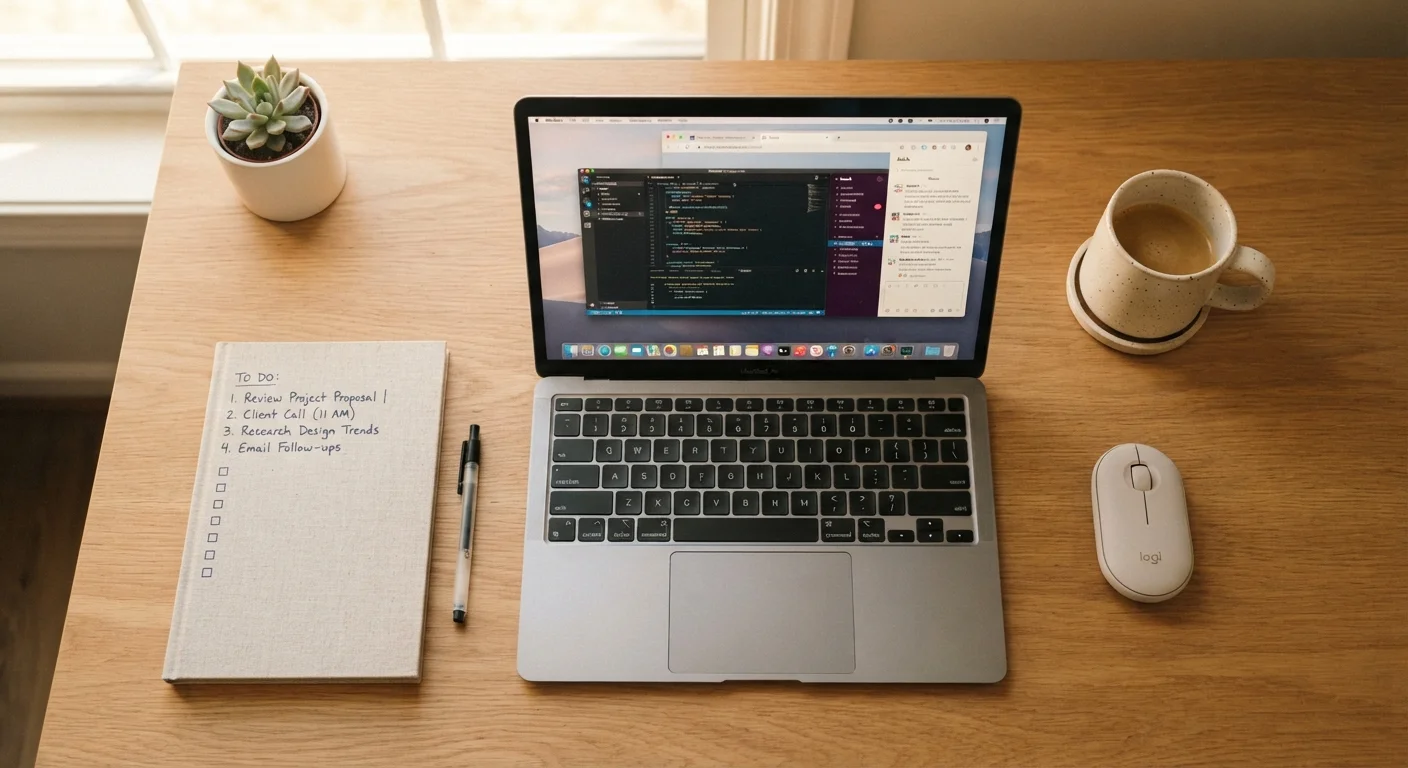
Photo credit: TheBlogZappier.com | Simple Search, Credible Results
In this article
A student, a video editor, and a remote worker have very different needs. This guide maps common tasks to the hardware that handles them well.
Key Takeaways
- Your most demanding task — not your most frequent one — sets the minimum hardware you need.
- Different tasks stress different components: GPU for graphics, CPU and RAM for processing-heavy work.
- Portability needs should factor into your decision as heavily as performance specs.
- Setting a budget ceiling before you shop prevents spec creep and unnecessary spending.
- Published software requirements give you concrete, task-specific hardware benchmarks to work from.
Why Use Case Beats Spec Sheet Every Time
Most people approach a computer purchase by comparing raw numbers — gigahertz clock speeds, gigabytes of RAM, terabytes of storage — without a clear frame for what those numbers mean in daily practice. The result is frequently a machine that's either overpowered for what they actually do, or quietly struggling with the one task they care about most.
A more reliable approach starts with your workflow, not a spec sheet. A student drafting papers and joining video calls has fundamentally different hardware requirements than someone editing 4K footage or running data pipelines. Neither needs the same machine, yet both can end up buying the same one when they start from specifications instead of tasks.
Your most frequent tasks matter, but your most demanding task is what actually sets the hardware floor. That single constraint — whether it's video rendering, complex spreadsheets, or extended gaming sessions — determines which processor and memory thresholds are worth paying attention to.
For a plain-language breakdown of common computer terminology, the Computer Specs Glossary is a useful starting reference. This guide focuses on identifying what your tasks actually require before you get to specs at all.
Matching Your Tasks to the Right Hardware
Once you know your use case clearly, most hardware decisions fall into place. The steps below walk you from identifying your actual tasks to building a short requirements checklist — rather than a wishlist shaped by marketing copy.
What you will need
Write down your three most common computing tasks
Think about what you open first when you sit down at a computer. A browser? A document editor? A creative application? Listing your three most frequent activities grounds your hardware search in actual behavior rather than aspirational use cases — and immediately separates what you genuinely need from what sounds impressive on a spec sheet.
Identify your single most demanding task
Among your frequent tasks, one will place the heaviest sustained load on hardware. That task — whether it's editing video, gaming at high settings, running large spreadsheets, or hosting multiple video calls at once — sets the performance floor for your machine. Hardware that handles your heaviest task well will handle everything lighter with ease.
Match that task to the specs it requires
Different tasks stress different hardware components. Here's a plain breakdown:
- Video editing and 3D rendering: Demand a capable CPU and substantial RAM; a dedicated GPU (graphics processing unit) accelerates rendering in most professional applications.
- Gaming: The GPU is typically the primary bottleneck, followed by CPU speed and RAM capacity.
- Office work, web browsing, and video calls: A mid-range processor and 8–16 GB of RAM handle these reliably for most users.
- Software development or data analysis: Benefits from more RAM and a faster CPU; storage speed also matters when working with large codebases or databases.
Decide on your portability and workspace requirements
Ask yourself honestly how often you'll need to move the machine. Frequent travel puts a premium on weight, battery life, and build durability. Working at a fixed desk most of the time opens up options — like desktop towers or larger, more powerful laptops — that would be impractical to carry daily. Neither choice is inherently better; it depends on your actual routine.
Set a firm budget ceiling before comparing options
Decide on your upper spending limit before looking at any specific hardware. Without a ceiling, it's easy to get pulled upmarket by incremental spec upgrades that don't translate into meaningful real-world improvements for your tasks. A firm budget also lets you quickly rule out options and keep your comparison focused on machines that are actually within reach.
Build a short checklist and evaluate options against it
Compile your requirements into a concise list: the minimum specs your most demanding task needs, your portability requirements, and your budget ceiling. Use this list actively when evaluating any machine, rather than reacting to marketing copy or feature lists. The common first-time buyer mistakes article is worth reviewing before you finalize any decision.
Two hardware relationships are worth keeping in mind as you work through the steps. Processing power (your CPU) and memory (RAM) together determine how many things your computer can do at once and how quickly it responds. Video editing, photo processing, and large data files lean heavily on both. If your work involves graphics — 3D modeling, gaming, or high-resolution video — the GPU becomes important as well. General tasks like web browsing, word processing, and video calls are considerably less demanding and don't typically require dedicated graphics hardware. The CPU Cores and Clock Speed guide goes deeper on how those variables play out across different workloads. If you're weighing whether a tablet might serve your needs instead, the Tablet or Laptop guide lays that comparison out plainly.
Pitfalls That Push Buyers Off Track
Even with a clear use case in mind, a few patterns reliably lead people toward the wrong machine.
Check Software Requirements First
Many creative and professional applications publish minimum and recommended system requirements on their official support pages. Looking those up before you shop gives you a concrete, task-specific hardware baseline — often more accurate than general guidelines about what a category of work typically demands.
Buying for a future use case you're not sure you'll have is one of the most common — and expensive — habits to avoid. If you're not editing video today and have no concrete plan to start, hardware scaled for that task adds cost and weight without adding value. The reverse trap is equally real: choosing underpowered hardware to save money, only to find the machine slows noticeably within a year or two as software and file sizes grow.
Spec Numbers Without Context Can Mislead
A higher number doesn't always mean better performance for your specific tasks. A processor with more cores may actually run certain single-threaded tasks more slowly than a chip with fewer, faster cores. Always evaluate hardware in the context of what you'll actually do with it, not in the abstract.
Portability is another factor that gets underweighted. If you carry a machine between home, work, or school regularly, battery life, weight, and screen size shape your daily experience far more than incremental spec improvements do. The Desktop or Laptop trade-offs guide covers the genuine differences between form factors in detail, including considerations around upgradeability and long-term value. If you're new to buying a computer generally, the Complete Guide for First-Time Buyers provides a broader end-to-end foundation to start from.

Author
Tech & Electronics Editorial Team
Tech & Electronics Editorial Team is the collective byline for our editorial team and contributor network. Articles published under this byline or an editorial pen name are researched, written, and reviewed according to our editorial standards for clarity, consistency, and independence before publication.
View all articles →