
Computers & Laptops: A Complete Guide for First-Time Buyers
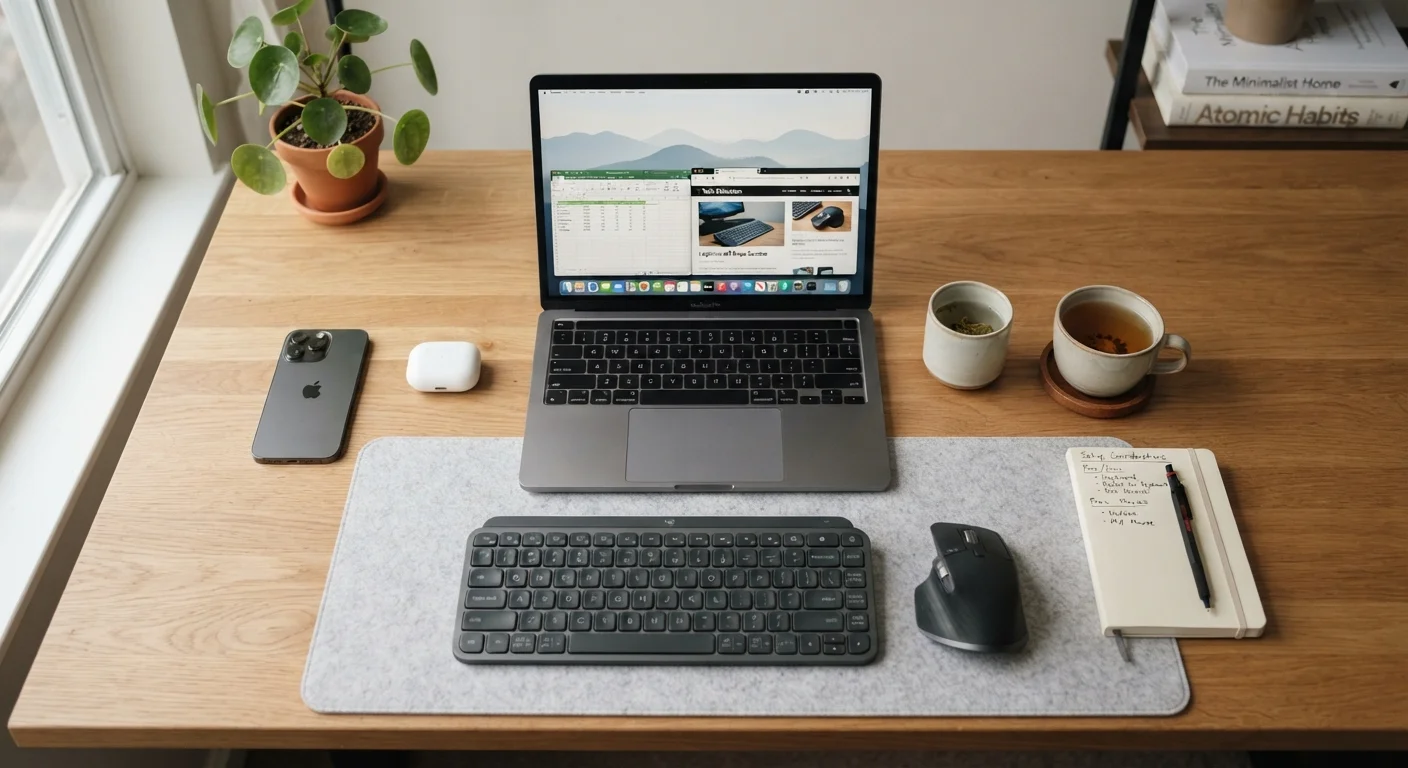
Photo credit: TheBlogZappier.com | Simple Search, Credible Results
In this article
New to buying a computer? This end-to-end guide walks you through hardware basics, use-case matching, and what specs matter most.
Key Takeaways
- Your use case — not the spec sheet — should drive your computer purchase decision.
- RAM and storage are different things; confusing them leads to common buying mistakes.
- Laptops trade upgradability for portability; desktops generally offer more flexibility over time.
- A machine that's overpowered for your needs costs money without adding real-world benefit.
- Checking port availability and OS compatibility before purchase saves frustration later.
Desktop, Laptop, or Something Else?
The first fork in the road is the form factor — and it's worth thinking through before you focus on any spec. Laptops are self-contained and portable, but that convenience comes with trade-offs: smaller screens, built-in batteries that degrade over time, and limited ability to upgrade components later. Desktops usually deliver more capability for the same money and are far easier to repair or expand, but they stay on one desk.
Then there are hybrids: 2-in-1 laptops that fold flat or detach a keyboard to function as a tablet, and compact mini-PCs that fit behind a monitor. These fill specific niches but involve their own compromises. For a thorough breakdown, see our Desktop or Laptop trade-offs guide.
If a tablet already handles most of what you do, consider whether you actually need a full computer at all — our Phones & Tablets hub can help you think through that question.
The Specs That Actually Matter
Spec sheets can feel designed to confuse. Here are the four that genuinely shape everyday performance:
CPU (Processor)
The central processing unit is the main chip that runs programs and carries out instructions. Think of it as the computer's brain.
RAM
Random access memory is temporary working space your computer uses while programs are running. More RAM lets you keep more things open at once without slowdown.
SSD
A solid-state drive is a type of storage that saves your files using flash memory, with no moving parts. It's faster and more durable than older spinning hard drives.
Integrated Graphics
Graphics processing built directly into the CPU, rather than on a separate card. Handles everyday visual tasks but isn't designed for gaming or intensive video work.
Operating System (OS)
The core software that runs the computer and lets you interact with it — examples include Windows, macOS, and ChromeOS. Your OS determines which apps you can install.
Form Factor
The physical design and size category of a computer — such as laptop, desktop tower, or mini-PC. Form factor affects portability, upgradeability, and what components can fit inside.
- Processor (CPU): More cores and higher clock speeds help with demanding tasks, but for typical home use, mid-range processors from major manufacturers are more than adequate. Chasing the fastest chip usually brings diminishing real-world returns.
- RAM: 8GB handles everyday use. 16GB gives you more comfort for multitasking. Anything above that is largely for professionals running specialized workloads.
- Storage: Solid-state drives (SSDs) are significantly faster than older hard-disk drives (HDDs) and have no moving parts. Prioritize an SSD — even a smaller one — over a larger HDD.
- Display: Resolution and panel type affect how comfortable extended use feels. Screen quality is easy to overlook but hard to change after purchase.
For a plain-English breakdown of every major term you'll encounter, the Computer Specs Glossary is a useful companion reference.
Let Real Tasks Guide Your Spec Targets
Rather than anchoring to a spec number, describe your typical day at the computer and work backward. 'I browse, stream, and use spreadsheets' points to very different requirements than 'I edit 4K video.' Matching specs to tasks — rather than maximizing numbers — leads to better value and a machine that feels right for years.
Matching the Machine to Your Use Case
The most common buying mistake is purchasing specs rather than purchasing for a purpose. Think through what you'll actually do most of the time:
- Web browsing, email, and documents: Low-power processors and 8GB RAM handle this easily. A lightweight laptop or modest desktop is entirely appropriate.
- Streaming and video calls: No dedicated graphics card needed. A decent display and reliable Wi-Fi or ethernet adapter matter more here.
- Photo and light video editing: Step up to 16GB RAM and a faster multi-core CPU. SSD storage is essential for smooth file handling.
- Gaming or heavy creative work: This is where a dedicated graphics card, more RAM, and faster storage start to pay off meaningfully — and where the desktop form factor often makes more sense.
Being honest about your actual habits will save you money and prevent you from ending up with a machine that feels sluggish for your specific needs despite impressive numbers on the box.
Performance Needs Shift Over Time
Software tends to grow more demanding with each update, so a machine that feels fast today may feel slower in a few years. This doesn't mean you need to buy the most powerful option available — but building in a modest buffer above your current needs is generally sound practice. It's also why upgradeability matters more for some buyers than others.
What First-Time Buyers Often Get Wrong
A few missteps appear repeatedly among first-time computer buyers. Knowing them in advance puts you in a better position:
- Over-prioritizing RAM while ignoring storage speed: More RAM doesn't compensate for a slow HDD. Storage speed is often the bigger bottleneck in everyday use.
- Ignoring the display: You look at the screen constantly. Resolution, brightness, and color accuracy have a direct impact on daily comfort — especially for anyone working with photos or doing long reading sessions.
- Underestimating port needs: Thin laptops in particular strip out ports. If you rely on USB-A devices, SD cards, or HDMI, check port availability before committing to any model.
- Skipping the operating system question: Windows, macOS, and ChromeOS each have different software ecosystems and learning curves. If you already use specific software, verify compatibility first.
Our first-time buyer pitfalls article goes deeper on each of these.
Thin Laptops Can Have Surprising Port Gaps
Ultra-slim laptops frequently omit standard USB-A ports, SD card slots, and HDMI outputs in favor of a smaller chassis. If you plug in peripherals regularly — external drives, monitors, or cameras — verify the port lineup before purchasing. Adding dongles and hubs works, but it adds cost and complexity that isn't always obvious at the point of sale.
Before You Power It On
Once you've made a purchase, a little preparation before setup day prevents common frustrations. Back up any data on your current device — even if you're not migrating files, this is good practice. Inventory the accessories and peripherals you currently use and confirm they're compatible with any new ports or operating system.
Check whether your software subscriptions (cloud storage, productivity suites, creative apps) transfer cleanly to the new machine. Some licenses are tied to a specific number of devices or require re-activation. It's also worth confirming your home Wi-Fi password and router band compatibility if the new machine supports Wi-Fi 6 or 6E.
The pre-setup checklist walks through all of these steps in order so nothing gets missed on day one.
Frequently Asked Questions

Author
Tech & Electronics Editorial Team
Tech & Electronics Editorial Team is the collective byline for our editorial team and contributor network. Articles published under this byline or an editorial pen name are researched, written, and reviewed according to our editorial standards for clarity, consistency, and independence before publication.
View all articles →