
Phone Storage: Cloud, Expandable, and Built-In — How They Compare
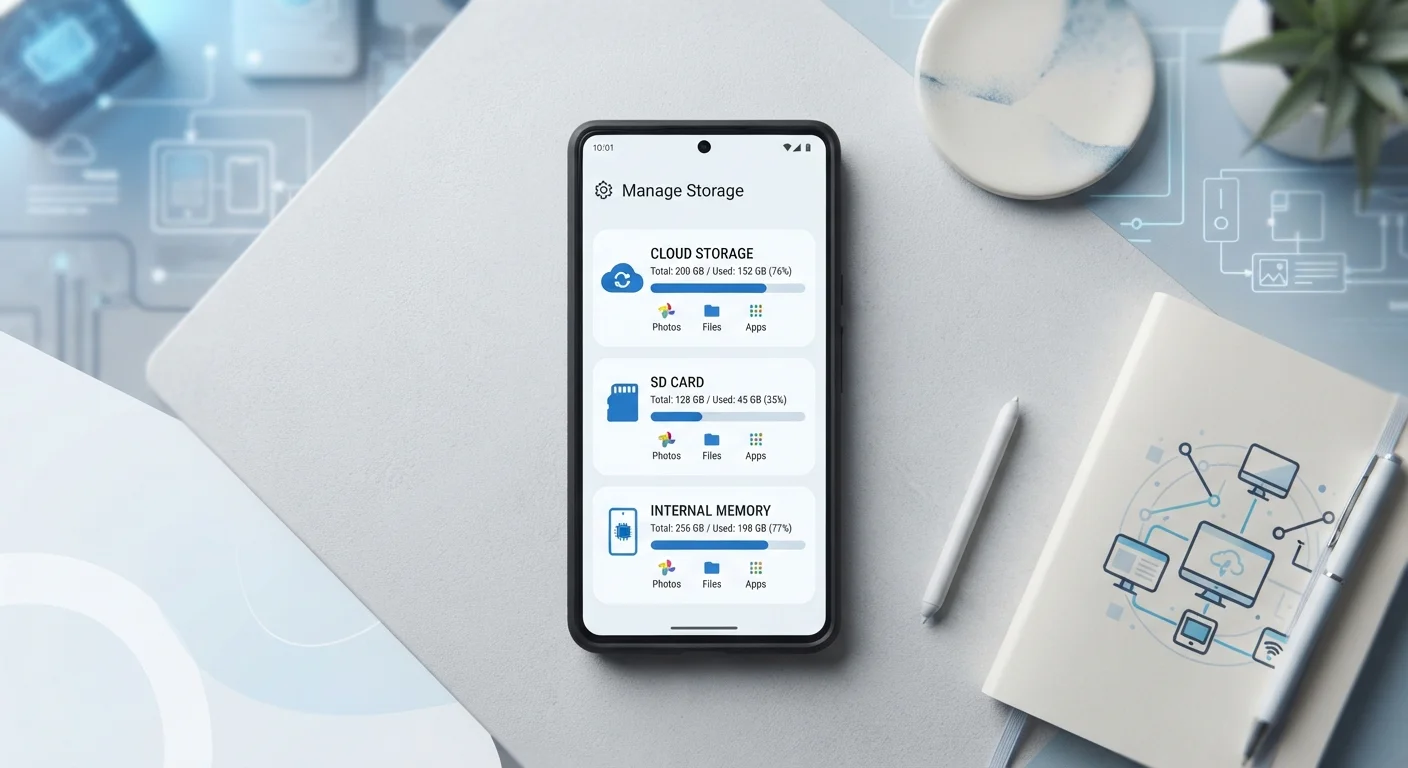
Photo credit: TheBlogZappier.com | Simple Search, Credible Results
In this article
Built-in storage, microSD cards, and cloud services each come with trade-offs. Here's how to think through which approach works for you.
Key Takeaways
- Built-in storage is fastest and most reliable but cannot be expanded after purchase.
- MicroSD cards add capacity cheaply, though not all Android phones support them and performance varies.
- Cloud storage keeps files off your device but depends on a data connection and ongoing subscription costs.
- Most people benefit from a combination of two approaches rather than relying on just one.
- Your choice of phone OS influences which storage options are even available to you.
Why Storage Type Actually Matters
When you're shopping for a new phone, storage capacity — measured in gigabytes (GB) — tells you how much stuff you can keep on the device. But where and how that storage works has just as much impact on your day-to-day experience as the raw number. A phone with 256GB of fast internal storage behaves very differently from one that relies on a slow microSD card or a spotty Wi-Fi connection to reach files stored in the cloud.
There are three main approaches: storage built directly into the phone (called internal or onboard storage), expandable storage via a physical card inserted into the phone (typically microSD), and cloud storage, where files live on remote servers you access over the internet. Each has genuine strengths and real limitations. If you want to understand how these numbers fit into the broader picture of phone specs, our breakdown of what phone specs actually mean covers the full context.
Built-In Storage: Fast, Fixed, and Reliable
Internal storage is soldered directly onto your phone's circuit board. It uses a technology called UFS (Universal Flash Storage) or eMMC on older or budget devices — both are types of flash memory similar in principle to what you'd find in a laptop SSD. The key characteristic: it's fast. Apps launch quickly, photos save instantly, and the operating system runs without bottlenecks caused by slow read/write speeds.
The significant downside is that you get what you buy. Once the phone is manufactured, that capacity is fixed. If you fill a 128GB phone and need more room, your options are limited to deleting files, offloading to cloud, or buying a new phone. Internal storage is also generally the most expensive way to add capacity — moving from 128GB to 256GB at purchase typically costs noticeably more than buying an equivalent microSD card separately.
| Built-In Storage | MicroSD Card | Cloud Storage | |
|---|---|---|---|
| Speed | Fast (UFS/eMMC flash) | Varies by card class | Depends on connection |
| Capacity limit | Fixed at purchase | Expandable up to 1TB+ | Scales with subscription tier |
| Ongoing cost | One-time (purchase price) | Low one-time card cost | Monthly subscription usually needed |
| Works offline | Yes, fully | Yes, fully | Limited or not at all |
| OS compatibility | iOS and Android | Android only (mostly) | iOS and Android |
| Risk of data loss | Device damage or theft | Card loss, corruption | Provider outage or account issues |
| Best for | Apps and OS performance | Large media libraries | Cross-device access and backup |
iPhone users have no choice but to work within this model, since Apple has never offered expandable storage. Many premium Android phones have also dropped the microSD slot in recent years. So understanding what you actually need before you buy matters — a topic worth revisiting when you're thinking through a phone switch.
Expandable Storage: Flexible but Not Without Limits
MicroSD cards slot into a physical tray on compatible phones and add capacity ranging from a few gigabytes to over a terabyte. The appeal is straightforward: you can buy a midrange phone with modest built-in storage and expand it cheaply. Cards are also removable, meaning you can physically transfer files to another device or keep a card as a backup.
The practical limitations are real, though. Not all apps can be moved to an SD card — most Android systems allow media storage there, but apps themselves often must stay on internal storage. Card speed varies considerably; a slow card can bottleneck performance when recording video or loading large files. There's also a compatibility issue: Android and iOS differ significantly here, with iOS offering no microSD support at all. And physical cards can be lost, damaged, or corrupted.
Not All MicroSD Cards Perform Equally
SD cards carry speed class ratings (such as Class 10, U3, or V30) that indicate minimum read and write speeds. Using a slow card for 4K video recording or running apps from it can cause lag, stuttering, or failed saves. Always check the card speed recommended by your phone's manufacturer before purchasing.
Cloud Storage: Accessible Everywhere, With Conditions
Cloud services like Google Photos, iCloud, Dropbox, and others store your files on remote servers, making them accessible from any device with an internet connection. For photos and documents especially, cloud storage can dramatically reduce what needs to live on your phone itself. Auto-backup features mean your memories are protected even if your phone is lost or broken.
The trade-offs center on connectivity and cost. Without mobile data or Wi-Fi, cloud files may be inaccessible or slow to load — a real issue when traveling or in areas with weak signal. Most services offer a limited amount of free storage, and meaningful capacity typically requires a monthly subscription. Those costs add up, and it's worth accounting for them as an ongoing expense. For a broader look at how subscription costs fit into a household budget, budgeting basics can provide useful framing.
Set Cloud Backup to Wi-Fi Only
Most cloud storage apps let you restrict automatic uploads to Wi-Fi connections only. Enabling this setting prevents large photo or video files from quietly eating through your mobile data allowance. Check your cloud app's settings under 'backup' or 'sync' options to confirm how it's configured.
Privacy is also worth considering: files stored in the cloud are held by a third party, subject to their terms of service and security practices. Understanding what a provider does with your data is part of an informed decision.
Choosing the Right Mix for You
For most people, the answer isn't one storage type exclusively — it's a combination. A phone with solid internal storage handles apps, active files, and performance-sensitive tasks well. A cloud backup service running automatically in the background protects photos and important documents without requiring manual effort. If your phone supports it and you store large media libraries, an SD card can add cheap capacity for that purpose specifically.
Think through a few practical questions: How much of your daily use requires files available offline? Do you stream music and video, or download them? Are you on a limited mobile data plan where cloud access would cost extra? How often do you travel or lose connectivity? Your answers shape which combination makes sense. The same logic that applies to storage decisions on phones applies in different ways to computers — comparing SSD vs HDD trade-offs shows how storage choices ripple through the entire user experience on any device.

Author
Tech & Electronics Editorial Team
Tech & Electronics Editorial Team is the collective byline for our editorial team and contributor network. Articles published under this byline or an editorial pen name are researched, written, and reviewed according to our editorial standards for clarity, consistency, and independence before publication.
View all articles →