
SSD vs HDD: Why Storage Type Changes More Than Just Speed
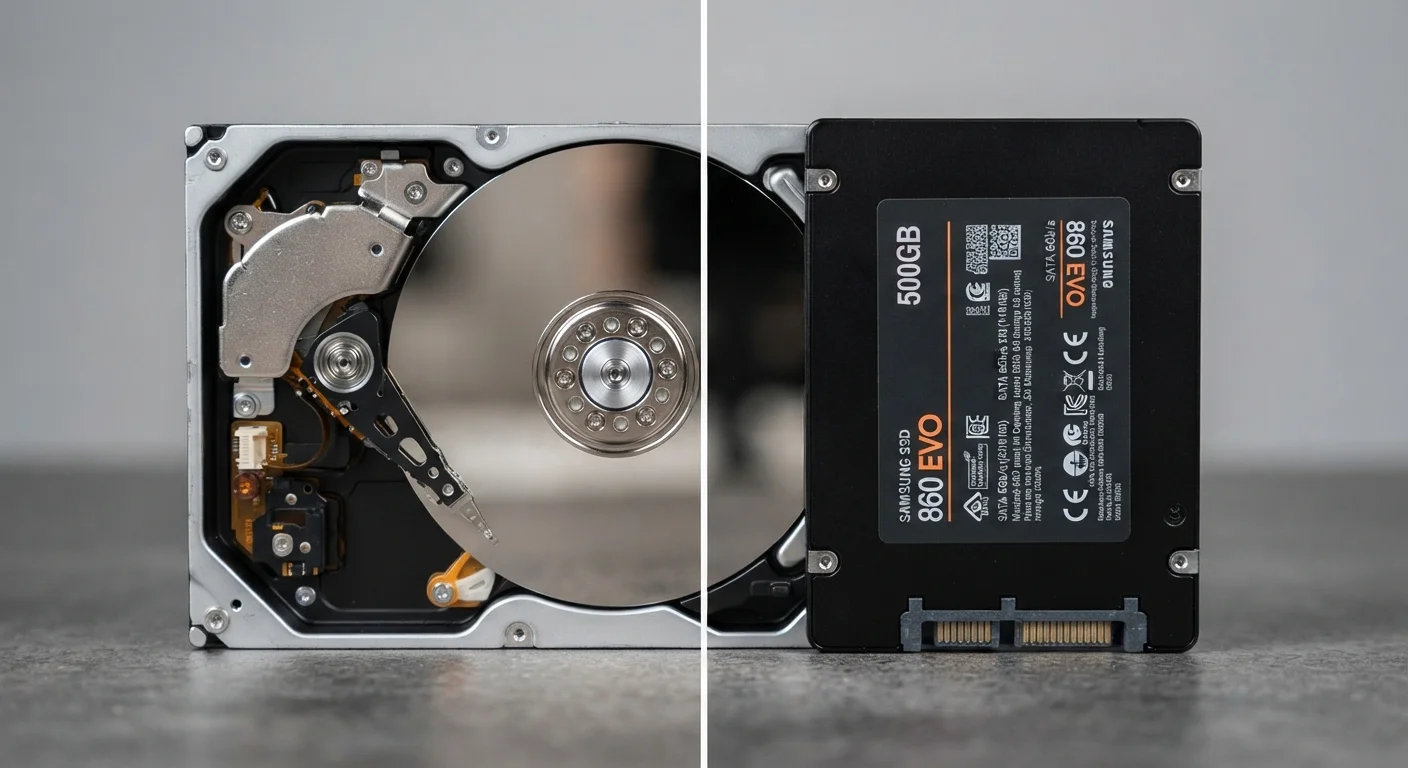
Photo credit: TheBlogZappier.com | Simple Search, Credible Results
In this article
SSDs and HDDs differ in speed, durability, noise, and longevity. Here's what those differences mean for real-world use.
Key Takeaways
- SSDs have no moving parts, making them faster, quieter, and more resistant to physical shock.
- HDDs typically offer more storage capacity per dollar, which matters for large media libraries.
- Boot times and application load speeds are noticeably faster on SSDs than on HDDs.
- HDDs are more susceptible to damage from drops; SSDs handle physical impact much better.
- For most everyday laptop users, an SSD is now the practical default choice.
- External HDDs remain a cost-effective option for bulk backup storage.
What Makes These Two Drive Types Different
An HDD (Hard Disk Drive) stores data on spinning magnetic platters. A tiny read/write head moves across the surface to access files — similar in concept to a record player. An SSD (Solid-State Drive) uses flash memory chips instead, storing data electrically with no moving parts at all.
That mechanical difference is what drives nearly every practical distinction between the two. It's not just about speed — it affects noise, heat, durability, power draw, and how the drive behaves over years of use. For a broader look at how storage fits alongside other specs, see our guide to RAM, storage, and processing power.
| Criterion | SSD | HDD |
|---|---|---|
| Moving parts | None (flash memory) | Yes (spinning platters) |
| Typical boot time | Under 15 seconds | 30–60+ seconds |
| Shock/drop resistance | High | Low to moderate |
| Noise | Silent | Audible hum or clicking |
| Cost per gigabyte | Higher | Lower |
| Typical max consumer capacity | Up to 4TB (common sizes: 256GB–2TB) | Up to 10TB+ for consumer drives |
| Power consumption | Lower | Higher |
| Best use case | Primary drive in laptops/desktops | Bulk backup or secondary storage |
Speed: What the Difference Feels Like Day to Day
SSDs are substantially faster than HDDs for the tasks computers do constantly — loading the operating system, opening applications, reading files. A computer with an SSD typically boots in under 15 seconds; the same machine with an HDD might take 45 seconds or more.
For most users, this is the most noticeable real-world difference. Searching through files, switching between apps, and launching programs all feel snappier. If a computer has been feeling sluggish, the storage drive is often part of the reason — especially on older machines that shipped with HDDs.
3–5x
Typical SSD speed advantage over HDD
Sequential read speeds for mainstream SATA SSDs commonly range from 500–550 MB/s, compared to 80–160 MB/s for typical consumer HDDs.
~10 sec
Average SSD boot time vs. 45+ sec for HDD
Independent hardware testing has consistently shown SSD-equipped systems reach the desktop substantially faster than HDD-based machines with similar specs.
HDDs can still transfer large sequential files (like video) at acceptable speeds, but they struggle when many small files need to be accessed simultaneously, which is exactly what happens during normal computer use.
Durability, Noise, and Practical Longevity
Because HDDs contain spinning platters and a moving read/write arm, they're vulnerable to physical shock. A laptop with an HDD that gets dropped or jostled while running risks data corruption or mechanical failure. SSDs have no such vulnerability — they handle movement and drops much better, which is a genuine advantage for anyone using a laptop regularly.
HDDs also generate audible noise: the spin of the platters and the movement of the read head produce a faint hum or clicking sound. SSDs are completely silent. They also tend to run cooler, which has modest implications for overall system heat.
Longevity is more nuanced. HDDs can last many years with light use, but the mechanical components wear over time. SSDs have a finite number of write cycles, but for everyday consumer use, most SSDs will outlast the practical lifespan of the computer they're in. The habits that keep a computer running well — like managing storage space — apply equally to both drive types.
On SSD Write Endurance for Everyday Users
SSDs are rated for a finite number of write cycles, expressed as TBW (terabytes written). For most consumer workloads — documents, browsing, media — a typical SSD will reach end-of-life write limits after many years of use, often longer than the computer itself remains in service. Heavy workloads like constant large-file video editing may wear drives faster, but this is rarely a concern for general home or office use.
Capacity and Cost: Where HDDs Still Have an Edge
HDDs remain significantly cheaper per gigabyte than SSDs. For desktop users or those building external backup setups, this matters: a multi-terabyte HDD costs considerably less than an equivalent SSD. If you're archiving large video files, raw photo libraries, or years of backups, an HDD — particularly as an external or secondary drive — stretches your dollar further.
SSD prices have dropped considerably over the years and continue to do so, but the cost-per-gigabyte gap hasn't closed entirely. Most consumer laptops now ship with SSDs in the 256GB to 1TB range as standard. If cloud storage or external drives handle your overflow, that's often sufficient. For context on how these trade-offs compare with phone storage approaches, see our comparison of phone storage options.
Thinking about where storage fits in the bigger picture of a new computer? The desktop vs. laptop trade-offs guide covers how the choice of form factor affects storage options and upgradability.

Author
Tech & Electronics Editorial Team
Tech & Electronics Editorial Team is the collective byline for our editorial team and contributor network. Articles published under this byline or an editorial pen name are researched, written, and reviewed according to our editorial standards for clarity, consistency, and independence before publication.
View all articles →